

Session Page#
In Backend.AI, a session represents an isolated compute environment where users can run code, train models, or perform data analysis using allocated resources.
Each session is created based on user-defined configurations such as runtime image, resource size, and environment settings.
Once started, the session provides access to interactive applications, terminals, and logs, allowing users to manage and monitor their workloads efficiently.
Resource summary panels#
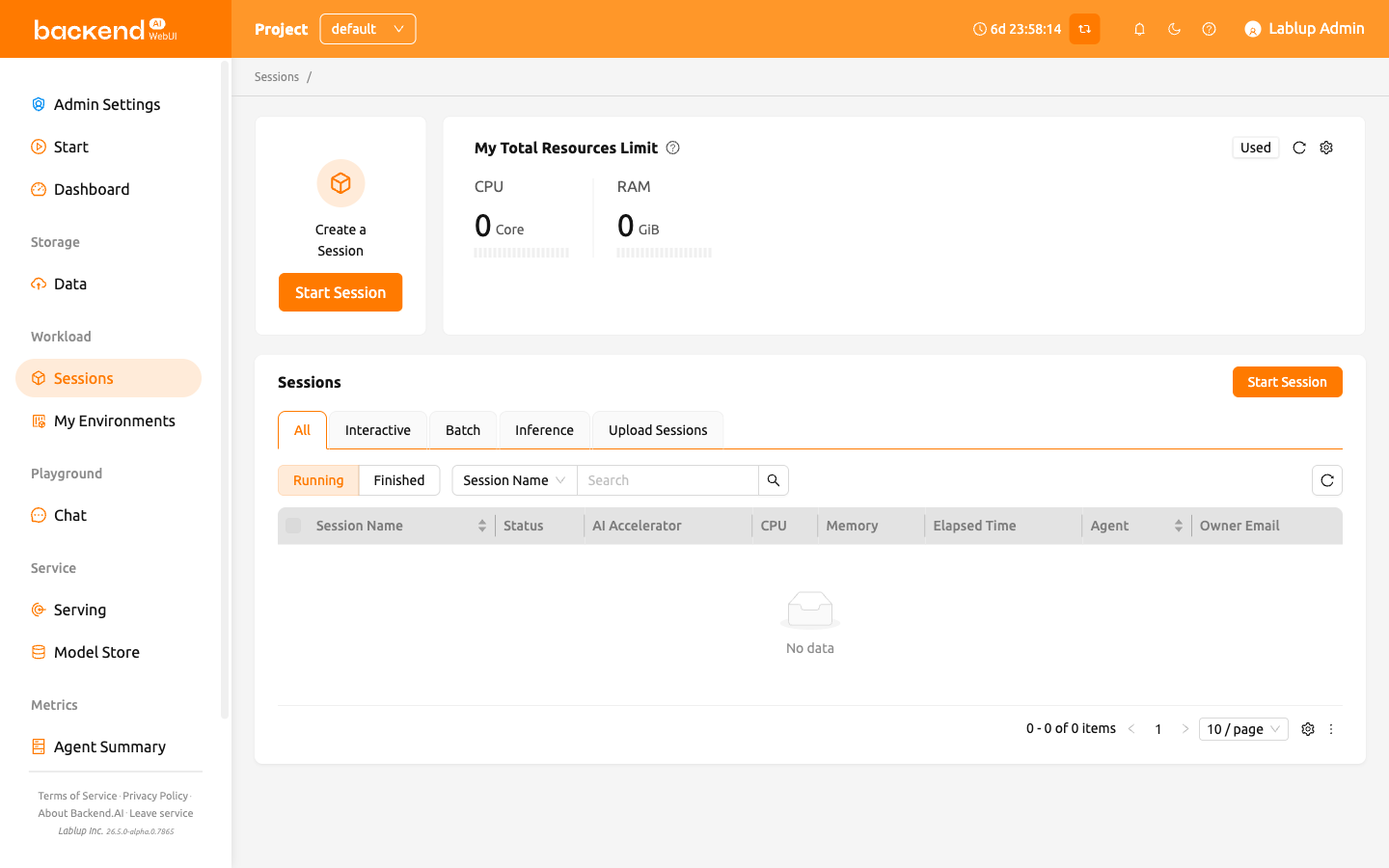
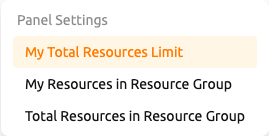
At the top of the 'Sessions' page, you can find panels displaying your computing resources such as CPU, RAM, and AI Accelerators. Different panel views — My Total Resource Usage, My Resources in Resource Group, and Total Resources in Resource Group — can be selected depending on the information needed. Click the settings (gear) icon in the panel header and pick a view under Panel Settings.
The My Total Resource Usage panel shows the resources you are currently using across all projects. To check the limit that applies to a resource, hover over the status bar below its number. When several limits apply (domain, project, or keypair), the most restrictive one takes effect.
For more detailed information about resource panels and their metrics, please refer to the dashboard page.
Session list#
The personal Sessions page displays only your own active and completed compute sessions.
You can filter sessions by type — All, Interactive, Batch, Inference, or Upload Sessions — and switch between
Running and Finished tabs to manage sessions.
The personal Sessions page shows only the sessions of the project selected with the project selector in the top bar — its address is
/project/<project name>/session — and it always shows only your own sessions, regardless of your role.
To view and manage sessions across all users in a project, use the Sessions page under
Admin Settings in the sidebar.
By default, you can view the following columns: session name, status, allocated resources (AI Accelerators, CPU, Memory),
and elapsed time.
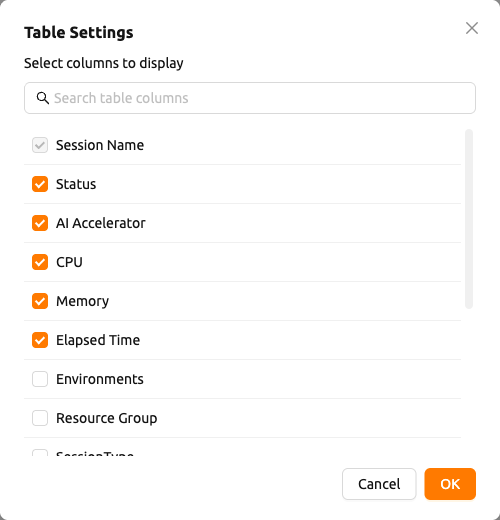
Additional columns can be shown or specific ones hidden by clicking the Settings button at the bottom right of the table to customize the view.
Within the column settings dialog, you can also drag columns to change the order in which they appear in the table.
You can view the detailed scheduling history for each session from the session detail panel. This helps you understand scheduling decisions, delays, and failures. For more details, refer to Session Scheduling History.
The Launch button on the session launcher creates one session by default.
To launch several sessions with the same configuration in one go, click the
more (...) icon next to the Launch button to open its dropdown menu and
select Launch Multiple Sessions. See Confirm and Launch
for details.
You can export the session list as a CSV file using the download button in the session list toolbar. Exporting is available to every user, not only to administrators — each user can export their own session history. The CSV export from the personal Sessions page always includes only your own sessions.